|
Place an order (Order Checkout)
|
Once you have created a quote online, or had our Client Services team create a quote for you, you can follow these steps to place your order.
- Step 1. Select "My Quotes" from User Menu
- Step 2. Choose quote, then select "Order" action button
- Step 3. Add Compound Information
- Note: if the quote is categorized as a custom quote, then this step is bypassed and you will be taken directly to the next step.
- In this step, you will indicate what compounds that are to be tested against which assays and at what concentrations.
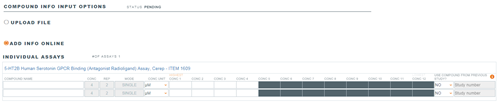
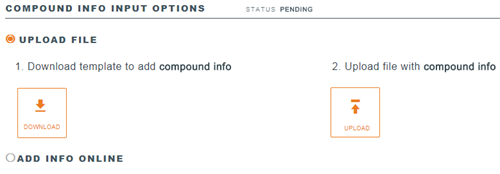
There are two methods by which you can supply your compound information. You can either 1) fill-in an online form or 2) use a downloadable form to fill-in offline, then upload the file once complete. If encountering issues with uploading the form, please ensure that concentrations fields (including automatically calculated fields) do not contain zero values. Please Note: the compound information form is quote/order specific. The same form that was downloaded must be uploaded for a given project (changing the file name is permitted). After upload, you can still review and edit the information online. If you try to proceed to the next step without all mandatory information being completed, then you will receive an online notification, the remaining required fields will be outlined in red and the status will still read "pending." Once you have completed all necessary information, you can successfully proceed to the next step.
- Online method
- Upload method
- You will also have the opportunity to mark if you want us to re-use compounds that Discovery Services may already have on site using the "Use compound from previous study" field in the forms. To accelerate review, please indicate a previous study for which the compound was tested. Once your order is placed, we will review whether we have enough compound to use for your new project.
- Step 4. Supply Payment Information.
- During this step you will add your Purchase Order number. Though optional, we encourage you to upload an electronic version of the PO as well.
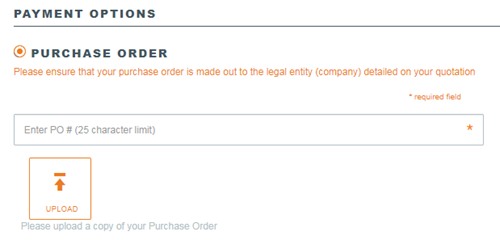 - Note: the website currently cannot accept credit card payments, therefore customers should contact Client Services if they desire to pay by credit card.
- Step 5. Review information and Confirm Order
- After reviewing the order information and Terms & Conditions, click "Confirm and Order Services" to complete your checkout. You can then view your order on My Orders or use My Studies for status updates on your orders.
|
