
| I Need To... | Basic Overview |
|
Create a quote and add service items to your Cart |
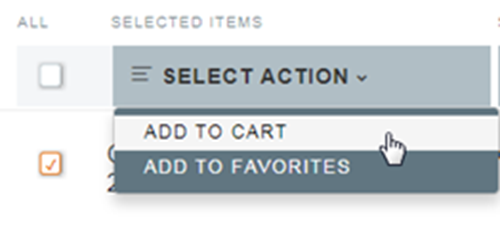
Step 1. Add service items to your cart. There are several options for adding items to the cart, including:
  |
|
Setup Assay Parameters on your Quote |
Step 2. Once assays have been added to your cart, testing parameters for each assay, or group of assays, can now be configured.
Once your assays have been configured you can move to the next step by clicking "Proceed". If you want to continue browsing the web site, click "Save & Update Price" to save parameters. |
|
Add Compound Information to my Quote (Optional) |
Step 3. Adding compound information during the quote creation process is optional. See the "Compound Information" section on "Place an Order" Helpful Hints page for more information on this topic. |
|
Select the EPDS site to where you will ship your compounds for your quote |
Step 4. The system will apply the default site for your account. Please note that there will be a charge for selecting a site other than the default suggested by the system. We will make arrangements to have your compounds transferred to other EPDS sites when needed. |
|
Select the Billing address for your quote |
Step 5. The quote needs to show the correct billing address before the order is placed. If your billing address is not shown on the billing page during quote creation or you need to update it, then please provide our Client Services team with the full address (including contact name, telephone number and email, where appropriate). We will set up the new billing address for you (this should take approximately 24 hours to update) |
|
Add additional Information to your quote (Optional) |
Step 6. In this section of the quote generation, you can add your personal study reference info, select additional study delivery formats, or add special instructions for your study. This additional info will appear on the quote, invoice and study report. Examples include:
|
|
Other options available for your quote |
Some additional actions available in the cart are "Delete" and "Duplicate" under the "Select Actions" dropdown. "Delete" will remove any selected assays from the cart (Note: the red delete icon(s) can also be used to delete one or all items from the cart). "Duplicate" will duplicate the select assays in the cart. The duplicate feature is typically used when you have multiple sets of compounds to be run against the same assay, but with different parameters. 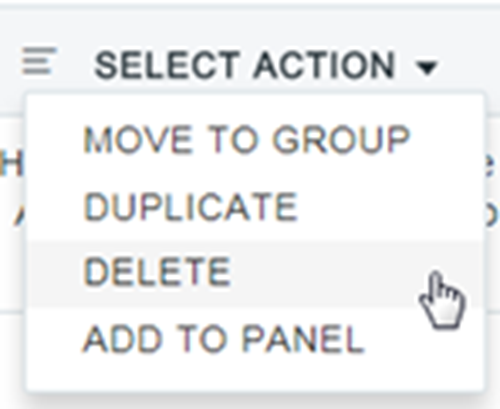 |
|
Review information and Create your quote. |
You have the opportunity to review the information that you added in previous steps. If you need to make a change, simply select "Edit" in a section or click on the step to which that you want to go back. Once your review is complete, click "Create Quote". |
|
View the Quote you’ve created |
You can view your created quote or other active quotes and related information on My Quotes from the User Menu. |
